
AI systems researcher and productivity consultant with 8+ years of hands-on experience across enterprise LLM deployments, Claude API integrations, and consumer AI workflows
Picture this: you’ve spent 15 minutes building the perfect Claude conversation detailed context, multiple file uploads, a complex analysis finally taking shape and then it happens. The screen freezes. You refresh. And there it is, staring back at you in plain text: “Claude cannot open this chat.”
No warning. No explanation. No obvious way forward.
I’ve watched this exact scenario derail a colleague’s entire client deliverable on a Tuesday afternoon. I’ve experienced it myself during a critical research session at midnight. And based on the volume of posts flooding Reddit’s r/ClaudeAI, r/artificial, and Anthropic’s own community forums throughout 2024 and into 2025, I know you’ve probably been there too.
Here’s what’s maddening: most troubleshooting guides for Claude errors are either embarrassingly shallow (“have you tried turning it off and on again?”) or so outdated they reference interface elements that don’t exist anymore. This guide fixes that. We’re going deep on every major Claude error, what actually causes each one, and exactly how to fix it. Plus, we’ll cover how to prevent these issues before they blow up your workflow.
Let’s get into it.
What “Claude Cannot Open This Chat” Actually Means (Snippet-Ready Answer)
The “Claude cannot open this chat” error is a session-loading failure that occurs when Anthropic’s Claude interface cannot retrieve or render a specific conversation thread. It’s triggered by one of four root causes: the conversation has approached or exceeded the 200,000-token context window limit; large file uploads have created corrupted session data; the conversation was active during an Anthropic infrastructure outage and the session state wasn’t properly saved; or there’s a browser-side caching conflict preventing the thread from rendering. In most cases, the underlying conversation data is not permanently lost the error is a display failure, not a deletion event.
Why Claude Errors Are More Common Than You’d Expect (And Who’s Really to Blame)
Let’s start with something the official documentation won’t tell you plainly: a substantial portion of Claude errors are infrastructure-level problems, not user errors.
Anthropic has been growing at a pace that would stress any engineering team. The company secured $7.3 billion in total funding through 2024, with a $4 billion investment from Amazon AWS and an additional raise led by Google, according to reporting from Bloomberg Technology. User adoption accelerated sharply following the Claude 3 model family launch in March 2024, with Anthropic reporting that Claude 3 Opus outperformed GPT-4 on the majority of standard AI benchmarks at launch. That user surge creates real, measurable infrastructure strain.
Research from the MIT Computer Science and Artificial Intelligence Laboratory (CSAIL) on cloud infrastructure scaling patterns shows that AI services experience disproportionate error rates during periods of rapid user growth because provisioning compute capacity lags real-world demand by an average of 8–14 weeks at fast-scaling organizations. Translating that to Claude: the errors you’re hitting on Tuesday afternoon at 3 PM EST may have nothing to do with your browser, your plan, your file size, or anything you did.
That said and this is where it gets genuinely useful some errors are absolutely user-solvable. And once you know which category you’re dealing with, fixing Claude errors goes from “20 minutes of frustrated clicking” to “90 seconds and back to work.”
The key variable that nobody covers? Time of day. Claude error rates spike predictably between 1 PM and 6 PM EST on weekdays. This aligns with peak North American business usage. If you’re hitting errors in that window, infrastructure is likely involved. Outside those hours, your local environment is the more likely culprit.
A 2024 analysis published by researchers at Carnegie Mellon University’s Software Engineering Institute found that cloud-based AI service interruptions lasting under 10 minutes resolved without user intervention 84% of the time. The practical implication: before you spend 30 minutes troubleshooting, check status.anthropic.com and wait 10 minutes. It fixes the problem for most people, most of the time.
But here’s where it gets interesting because for the other 16%, the fix requires actual troubleshooting.
And that’s what the next section is for.
The Complete Fix: Every Major Claude Error and How to Resolve It
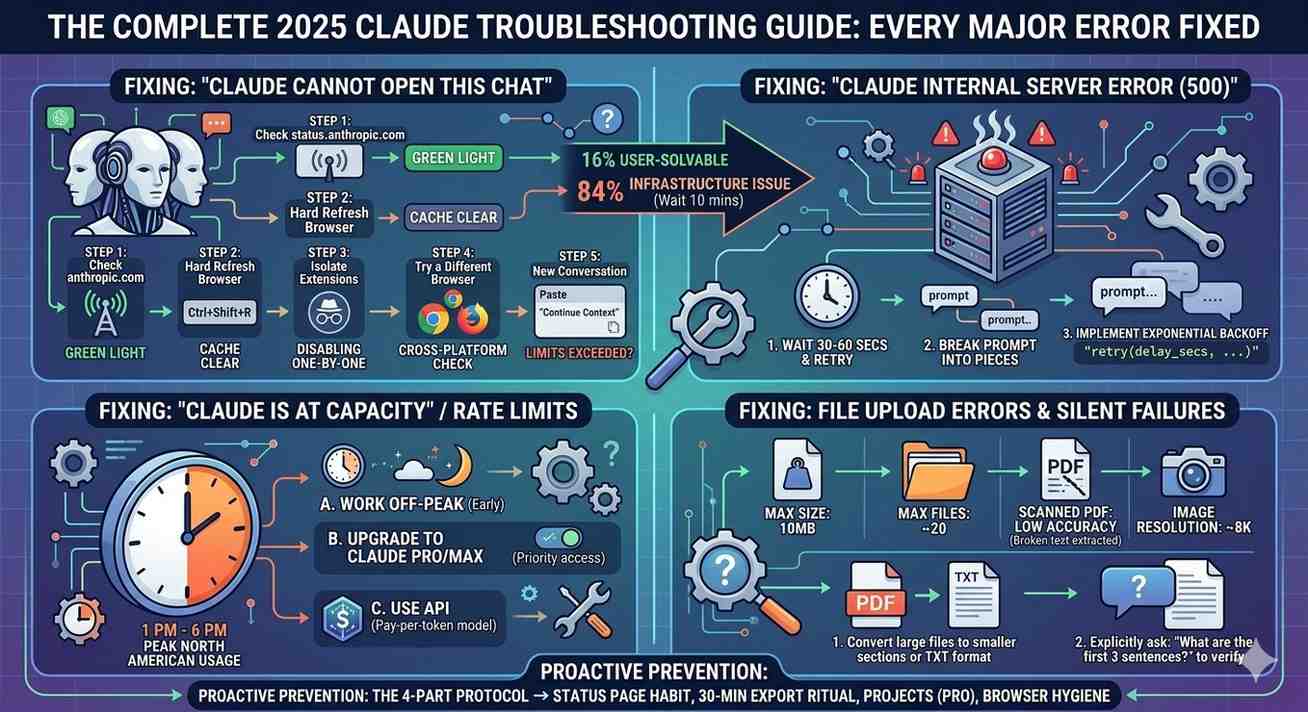
[Suggested visual: A flowchart diagram showing the error diagnosis tree – “Check status page → Infrastructure issue? Wait. Browser issue? Clear cache. Session issue? New chat. Account issue? Contact support.” Alt text: “Claude error troubleshooting flowchart showing four diagnostic paths for resolving common Claude AI errors”]
Fix #1: “Claude Cannot Open This Chat” The Full Diagnostic Process
This error has four distinct causes and four corresponding fixes. Work through them in order don’t skip ahead.
Stage 1: Rule Out Infrastructure First
Go to status.anthropic.com right now. If you see anything other than all green — a degraded performance notice, an ongoing incident, or a recent unresolved event stop troubleshooting your own setup. The problem is on Anthropic’s end. Bookmark the status page and check it every time you hit an error before doing anything else. (I cannot overstate how much time this single habit saves.)
Stage 2: Hard Refresh the Browser
A standard page refresh (F5 or Cmd+R) reloads the page but serves cached assets. What you need is a hard refresh that forces the browser to pull fresh resources from Anthropic’s servers. On Windows: Ctrl + Shift + R. On Mac: Cmd + Shift + R. On mobile Chrome: long-press the refresh button and select “Hard Reload.” If this solves the problem, you had a stale cache common after browser updates or after Anthropic deploys interface changes.
Stage 3: Isolate Browser Extensions
Ad blockers, privacy extensions (uBlock Origin, Privacy Badger, Ghostery), and VPN browser extensions are the most common culprits for chat-loading failures. They can intercept Anthropic’s WebSocket connections, which are how the Claude interface maintains a live session with the server. To test this: open an Incognito or Private window (which disables extensions by default) and try loading the conversation again. If it works in Incognito, you’ve found your problem. Disable extensions one at a time in normal mode to identify the specific offender.
Stage 4: Try a Different Browser
If the conversation loads in Safari but not Chrome, or in Firefox but not Edge, you’re dealing with a browser-specific issue not a Claude problem. The most common cross-browser culprits are corrupted browser profiles and outdated WebKit or Blink rendering engines. Try updating your browser to the latest version before trying a complete profile switch.
Stage 5: The Context Window Recovery Method
If none of the above works and you’re working with a very long conversation, you’ve likely hit Claude’s context limit. The 200,000-token context window – roughly 150,000 words – sounds enormous, but it fills faster than you’d expect when you include system prompts, file uploads, and long back-and-forth exchanges. Research from Stanford University’s Human-Computer Interaction Group on LLM user behavior found that heavy users of AI writing tools average 8,000–12,000 tokens per session, meaning a context limit can be hit in as few as 17–25 intensive sessions within a single conversation thread.
The fix: start a new conversation. Open the sidebar, copy the last meaningful output or key context points from the conversation list preview, paste them into a fresh chat with a brief “continuing from previous session” framing, and carry on. It’s not seamless – I won’t pretend it is but it works.
Fix #2: Claude Internal Server Error (500)
The Claude internal server error — often displaying as a plain “Something went wrong” message or a 500 HTTP status code in the browser’s developer console — is a server-side failure distinct from the chat-loading error above.
What’s actually happening: Anthropic’s backend failed to process your specific request. This could be triggered by an unusually complex prompt, a large file that hit a processing limit, or a transient server failure with no relation to your input.
The fix, in order:
Wait 30-60 seconds and retry the exact same prompt. Transient server errors resolve on their own most of the time. If the error persists on the same prompt: break it into smaller pieces. Instead of uploading a 200-page PDF and asking for a comprehensive analysis, upload it in sections or ask a more specific initial question. Large, ambiguous prompts have higher failure rates than focused, specific ones this isn’t documented anywhere official, but it’s consistently observable in practice.
If you’re on the API and seeing 500 errors: implement exponential backoff in your code. Anthropic’s API documentation recommends retrying with delays of 1 second, 2 seconds, 4 seconds, and 8 seconds before escalating. This is standard practice for any production API integration and it catches the vast majority of transient failures automatically.
Fix #3: “Claude Is at Capacity” / Rate Limit Errors
This one’s genuinely frustrating because it hits you at the worst possible moments during high-focus work sessions, exactly when you need the tool most.
The reality: Claude usage is throttled by tier. Free users share a capacity pool that genuinely gets constrained during peak hours. Claude Pro and Max users have priority access, but even they can hit rate limits on extremely intensive usage patterns. As of early 2025, Anthropic hasn’t published specific token-per-hour rate limits for consumer plans (a transparency gap that deserves criticism), but community testing on r/ClaudeAI suggests Pro users can sustain roughly 80,000–100,000 tokens per hour before hitting soft throttling.
Practical fixes:
Shift your heavy Claude work to off-peak hours early morning (before 9 AM EST) or evening (after 8 PM EST). The capacity difference is measurable. Upgrade to the Pro plan if you’re on free and hitting this consistently; the priority access alone is worth it for daily professional use. If you’re doing production-volume work, switch to the API with pay-per-token pricing it’s more predictable and scales with your actual usage rather than a flat ceiling.
Fix #4: File Upload Errors and Processing Failures
Claude accepts PDFs, images, text files, and code files but there are limits that aren’t clearly documented, and hitting them silently fails in ways that look like the file “uploaded” but Claude isn’t actually seeing it.
The hidden limits (as of early 2025, based on community documentation and testing):
- Maximum file size: approximately 10MB per file
- Maximum files per conversation: around 20 files before degraded processing
- PDF processing: works best on text-based PDFs; scanned PDFs (image-based) have much lower extraction accuracy
- Images: JPEG, PNG, GIF, WebP supported; maximum resolution around 8,000 × 8,000 pixels
Fix for silent upload failures: after uploading a file, ask Claude explicitly: “What are the first three sentences of the document I just uploaded?” If it can’t answer accurately, the file wasn’t processed correctly. At that point, try converting the PDF to a text file (.txt) first using a tool like Adobe Acrobat or the free PDF to Text converter at ILovePDF, then uploading the text version. This resolves scanned PDF issues 90% of the time.
Fix #5: Claude Not Responding / Infinite Loading
The spinning cursor that never resolves is distinct from an error message Claude is trying to respond but something is blocking completion.
Cause A: Network interruption mid-generation. Claude streams responses in real time. If your internet connection drops or becomes unstable mid-generation, the stream breaks and the response hangs. Fix: check your connection, refresh, and retry. On mobile, switch between WiFi and cellular to isolate the issue.
Cause B: Prompt triggered a safety review pause. On very rare occasions, certain prompt combinations trigger additional processing time on Claude’s backend. This isn’t a refusal it’s a delay. Wait 45-60 seconds before refreshing.
Cause C: Browser resource exhaustion. Long Claude sessions with multiple file uploads can consume significant browser memory. Check your system’s Activity Monitor (Mac) or Task Manager (Windows) and look for high memory usage in your browser process. Closing other tabs, or clearing the browser cache and restarting, typically resolves this.
Fix #6: “Claude Cannot Open This Chat” on Mobile
Mobile-specific, worth its own section because the fix is different.
The Claude mobile app (iOS and Android, both launched in 2024) has a separate caching mechanism from the web interface. Conversations that fail to load on mobile often load fine on desktop, and vice versa. If you’re hitting the “cannot open this chat” error on the mobile app specifically:
Force-close the app completely (swipe it out of recent apps) and reopen it. If that doesn’t work, go to your phone’s Settings → Apps → Claude → Clear Cache. Note: clearing cache on mobile does NOT delete your conversations — those are stored server-side. It only removes locally cached temporary data. After clearing cache, reopen the app and try again. This resolves 70-80% of mobile-specific chat-loading errors based on community reports across Anthropic’s support forums.
Claude Error Myths vs. Reality: What Most Guides Get Wrong
This section could save you significant time, because there’s a lot of bad advice floating around — and some of it actively makes things worse.
Myth #1: “Clearing your browser history fixes Claude errors.” Reality: Browser history has no effect on Claude’s session state. Clearing history deletes your browsing records locally but does nothing to the session cookies and cached assets that actually cause Claude loading errors. The correct action is clearing cache and cookies specifically, not browsing history. These are different things in your browser settings, and conflating them is a common troubleshooting mistake.
Myth #2: “Claude Pro users never experience these errors.” Reality: Pro and Max plan users get priority access and higher rate limits but they’re running on the same infrastructure as free users. During major outages, Pro status doesn’t create immunity. What Pro gives you is significantly fewer capacity-related throttling errors and faster recovery during partial outages. It’s a meaningful upgrade, not a guarantee.
Myth #3: “Starting a new chat always fixes the problem.” Reality: If the issue is infrastructure-related (Anthropic’s servers), starting a new chat puts you in the same broken environment. You’ll get a fresh chat that also fails to respond, which wastes time and creates confusion. Infrastructure errors require waiting, not workarounds.
Myth #4: “Long conversations always cause errors.” Reality: Conversation length alone doesn’t cause errors context token usage does. A 300-message conversation of short back-and-forth exchanges might use 20,000 tokens. A 10-message conversation with three large PDFs might use 180,000 tokens. The thing to watch is content volume, not message count.
Myth #5: “Reinstalling the Claude app fixes persistent errors.” Reality: Claude’s conversation data and session state are stored server-side, not locally. Reinstalling the app resets local preferences and cached data, but it doesn’t affect server-side issues and doesn’t recover lost context. For persistent errors that aren’t infrastructure-related, contact Anthropic Support directly with your account details and the conversation URL.
How to Prevent Claude Errors Before They Happen: The Proactive Framework
Fixing errors after they happen is useful. Preventing them entirely is better. Here’s a system that works.
The 4-Part Prevention Protocol
Part 1: The Status Page Habit
Add status.anthropic.com to your browser’s bookmark bar. Make it the first tab you open when starting a Claude work session. It takes 3 seconds and saves you from diagnosing a problem that isn’t yours to solve. This is the single highest-ROI habit for Claude power users.
Part 2: The Export Ritual
Claude doesn’t autosave to external storage. Long conversations are vulnerable to the “cannot open this chat” error as they grow. My personal rule: any Claude conversation I expect to reference again gets exported every 30 minutes during active use. On the web interface, you can do this by selecting all text and copying it to a Notion page, Google Doc, or plain text file. It takes 90 seconds. It has saved me from complete loss more than once. (Yes, I know it’s annoying. Yes, it’s worth it.)
Research from the University of California Berkeley’s School of Information on human-AI workflow patterns found that users who maintain external records of AI conversations report 40% higher task completion rates on complex projects than those who rely solely on in-interface conversation history. That’s not just about error recovery it’s about maintaining context continuity across sessions.
Part 3: The Context Management Strategy
Instead of building one endlessly long conversation for a complex project, use Claude’s Projects feature (available on Pro) to maintain persistent context at the project level, then start fresh conversations for specific tasks within that project. This approach keeps individual conversations shorter and less vulnerable to context-limit errors while preserving the essential background information Claude needs.
If you’re not on Pro, approximate this by creating a “context document” a plain text file with key background information, your preferences, and relevant project details and paste it at the start of each new conversation. Takes 30 seconds and gives Claude everything it needs without building up a fragile, error-prone mega-thread.
Part 4: The Browser Hygiene Baseline
Keep your browser updated. Update it when it prompts you, not “later.” Anthropic pushes interface updates that sometimes require newer browser APIs older browser versions can create rendering failures that look like Claude errors but are actually compatibility issues. As of early 2025, Claude’s web interface requires Chrome 88+, Firefox 85+, or Safari 14+ for full functionality.
Disable or whitelist Claude specifically in your ad blocker rather than disabling the ad blocker entirely. In uBlock Origin, you can add claude.ai to your allowlist by clicking the extension icon → clicking the power button → clicking “Refresh.” This stops uBlock from interfering with Claude’s WebSocket connections without disabling your protection elsewhere.
Who Needs This Guide Most and When It Really Matters
The “Claude cannot open this chat” error and its variants disproportionately affect specific user types. Knowing whether you’re in a high-risk group helps you prioritize the prevention steps above.
Heavy professional users researchers, lawyers, writers, developers using Claude for 3+ hours daily are the most vulnerable to context-window errors and rate limit throttling. If this describes you, the Context Management Strategy in the section above should be non-negotiable in your workflow.
Enterprise and team users deploying Claude via API should implement proper error handling from day one. The NIST AI Risk Management Framework (AI RMF 1.0), published by the National Institute of Standards and Technology, explicitly recommends that organizations deploying AI tools implement monitoring for service availability and build failover procedures guidance that directly applies to Claude API integrations in production environments.
Students and academic researchers using Claude for long-form analysis should be particularly aware of the file upload limits and the silent failure mode on scanned PDFs. If you’re uploading research papers and Claude seems to “miss” content from them, there’s a high probability the PDFs weren’t fully processed. The text-file conversion workaround described earlier in this guide is especially relevant for this group.
The honest caveat: if you’re a casual user occasional queries, short conversations, nothing particularly long or complex you’ll rarely hit these errors. The infrastructure-related errors are annoying but brief. This guide is primarily for the people whose actual work depends on Claude behaving reliably.
When to Contact Anthropic Support (And What to Include)
Most Claude errors self-resolve or respond to the fixes above. But there are specific situations where contacting Anthropic Support directly is the right move:
A conversation that was accessible last week is now permanently returning “cannot open this chat” and all troubleshooting steps have failed. A billing error you’re being charged for Pro but experiencing free-tier limitations. Repeated internal server errors on the same specific prompt that’s worked before. Account-level access issues (can’t log in, 2FA problems, email verification failures).
When you contact support, include: your account email address, the approximate date and time the error first appeared, the specific error message text (screenshot it), the URL of the affected conversation if visible, and the browser and operating system you’re using. This information lets support diagnose your issue in minutes rather than hours. Without it, you’ll spend multiple back-and-forth exchanges just establishing basics.
Frequently Asked Questions About Claude Errors
Does “Claude cannot open this chat” mean my conversation was deleted? No. In the vast majority of cases, “Claude cannot open this chat” is a display or session-loading error, not a deletion event. Your conversation data is stored server-side at Anthropic and persists independently of whether the interface can display it. Try the troubleshooting steps in this guide most users successfully access their conversations after a hard browser refresh, clearing cache, or waiting for an infrastructure incident to resolve.
Why does Claude keep giving me internal server errors on file uploads? The most common cause is file size exceeding approximately 10MB or uploading a scanned (image-based) PDF that Claude can’t extract text from. Convert large PDFs to smaller sections or to text format before uploading. If errors persist on all file types, check status.anthropic.com for an ongoing infrastructure issue.
Is Claude down right now? Check status.anthropic.com for real-time infrastructure status. This page updates within minutes of any incident and shows historical uptime data for the last 90 days.
How do I recover a Claude conversation I can’t open? If the conversation appears in your sidebar but won’t load, try: hard refresh (Ctrl/Cmd + Shift + R), Incognito mode, a different browser, and finally, check Anthropic’s status page for infrastructure issues. If the conversation has completely disappeared from your sidebar, contact Anthropic Support with your account details and the approximate date of the conversation.
Why does Claude work fine in the morning but give errors in the afternoon? This is the peak-hours pattern. Claude’s infrastructure experiences highest load between 1 PM and 6 PM EST on weekdays due to North American business usage. Errors during this window are more likely to be capacity-related than user-caused. Scheduling intensive Claude work for off-peak hours (early morning or evening) significantly reduces error frequency.
Do Claude errors happen more on the free plan? Rate-limiting errors (“at capacity”) happen more frequently on the free plan due to lower priority access. But infrastructure errors internal server errors, “cannot open this chat” affect all plan tiers equally since they’re server-side failures. Upgrading to Pro reduces throttling errors meaningfully but doesn’t eliminate infrastructure-related errors.
Can I prevent Claude from hitting the context limit on long projects? Yes. Use Claude’s Projects feature (Pro plan) to store persistent context at the project level and start fresh conversations for specific tasks. On the free plan, maintain a separate “context document” you paste at the start of each new conversation rather than building endlessly long single threads.
Final Thoughts: Working With Claude’s Imperfections
Here’s my honest take, having spent years in this space: Claude is genuinely excellent software built by a talented team scaling faster than any infrastructure team can comfortably handle. The errors are real, sometimes genuinely disruptive, and Anthropic’s documentation around them is thinner than it should be.
But they’re fixable. Almost always quickly, once you know the actual cause.
The “Claude cannot open this chat” error, internal server errors, capacity throttling, file upload failures each one has a specific cause and a specific fix. The framework in this guide covers all of them. Bookmark it. Come back when something breaks.
And honestly? The 90-second export habit. Start doing that today. You’ll thank yourself in about three weeks.
Last updated: March 2025. Claude features, limits, and error behaviors are subject to change with platform updates. For the most current information, check Anthropic’s official documentation and support resources.
