
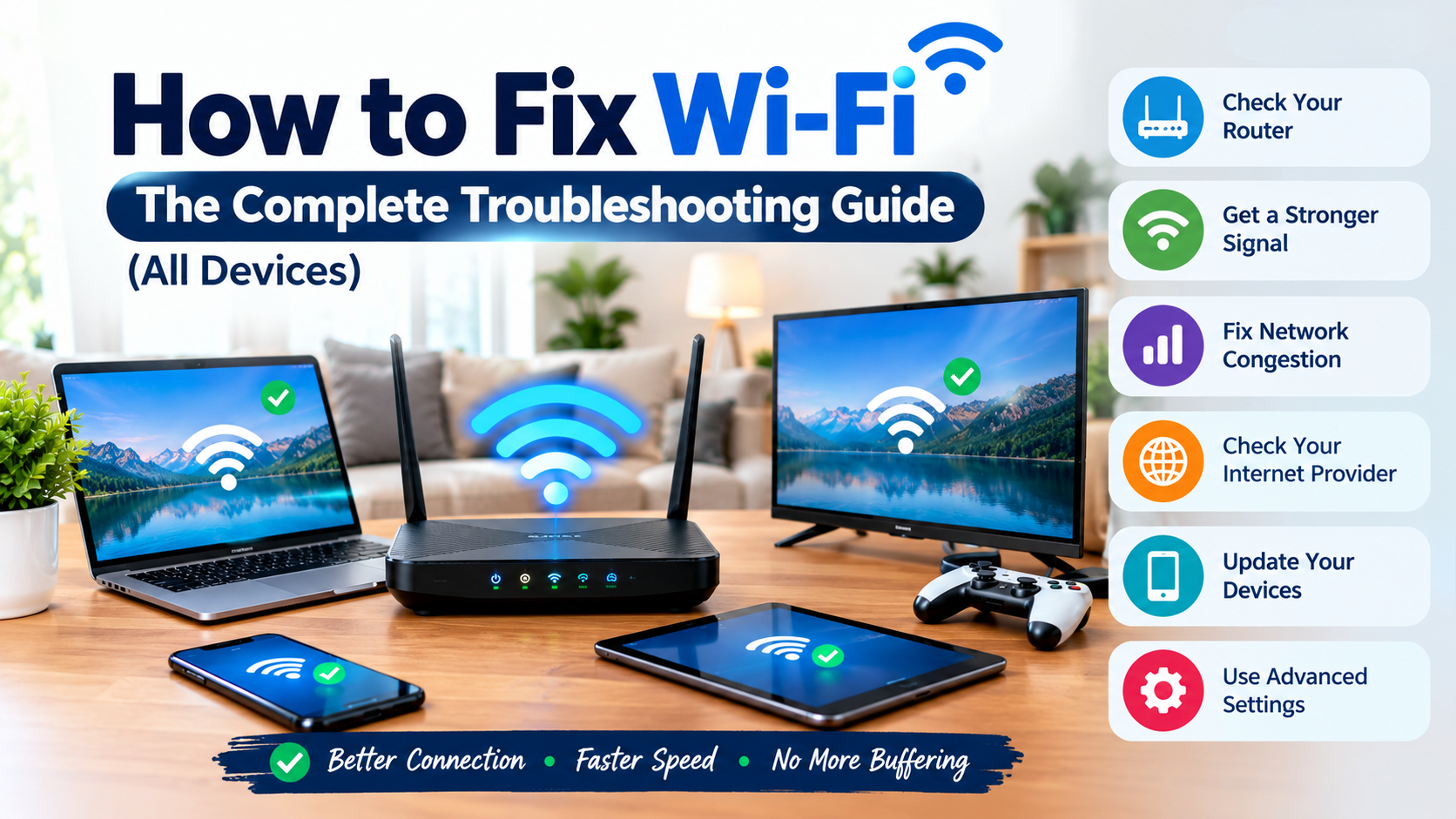
Wi-Fi problems rarely look the same twice. Sometimes it’s a weak signal in one room. Sometimes it’s a specific error message refusing to let you connect at all. Sometimes everything was fine an hour ago and now it isn’t. This guide brings every common Wi-Fi problem together in one place, with a clear diagnostic path and specific fixes for phones, computers, and whole-home connection issues.
Use the overview below to identify your situation, then read the matching section further down the page.
Start Here: What Kind of Wi-Fi Problem Do You Have?
- Signal is weak in certain rooms, but it connects fine → see “How to Fix a Weak Wi-Fi Signal”
- Everything feels slow, everywhere → see “Why Is Your Internet So Slow“
- A device won’t connect at all, with an error message → see “Can’t Connect to This Network”
- Specifically an iPhone problem → see “How to Fix iPhone Not Connecting to Wi-Fi or Data”
- The connection drops repeatedly throughout the day → see “Why Does My Internet Keep Going Out”
- Specifically a Windows 11 error message → see “Can’t Connect to This Network on Windows 11”
Table of Contents
How Wi-Fi Actually Works (Quick Background)
Your router broadcasts a wireless radio signal that carries data between your devices and the internet connection coming into your home. Three separate things can go wrong along that path: the signal itself can be weak or blocked, the connection can be genuinely slow due to bandwidth limits, or a device can fail to establish a connection at all because of a settings or authentication problem. Knowing which of these you’re dealing with is the fastest way to the right fix.
How to Fix a Weak Wi-Fi Signal
A weak signal means your device is picking up the Wi-Fi broadcast, but it’s too faint or too obstructed to perform well. This is usually a distance and interference problem, not a speed problem.
Common causes:
- Router placed in a corner, cabinet, or low position
- Walls, floors, and large appliances between the router and your device
- Interference from microwaves, cordless phones, or neighboring networks
- Outdated router hardware
- Too many connected devices overwhelming an older router
Fixes, in order of effort:
- Move the router to a central, elevated, open location, away from cabinets and thick walls.
- Switch Wi-Fi channels. On 2.4GHz, channels 1, 6, and 11 avoid overlapping with each other, reducing interference in crowded buildings.
- Use 5GHz or 6GHz for nearby devices that need speed, and reserve 2.4GHz for devices farther from the router.
- Update your router’s firmware through its admin settings or manufacturer app.
- Add a mesh Wi-Fi system for larger or multi-floor homes, which gives more even coverage than a single router or extender.
- Replace routers older than five years, especially if the household has many connected devices.
Why Is Your Internet So Slow?
If your connection loads but everything feels sluggish, the cause is usually different from a weak-signal problem.
Common causes:
- Too many devices sharing bandwidth at once
- Background activity like app updates or cloud backups
- Network congestion on your provider’s side during peak hours
- An outdated router that can’t efficiently manage current household demand
- A weak Wi-Fi signal reaching the specific spot you’re using
How to check where the problem is:
Run a speed test with a device connected directly to the router by ethernet cable. If that speed matches your plan, the slowdown is in your Wi-Fi setup rather than your internet service. It’s also worth checking whether your subscribed plan actually matches your household’s needs; a useful household broadband speed guide breaks down recommended minimum speeds based on how many people and devices are active at once.
Fixes:
- Restart the router and modem regularly to clear memory buildup.
- Disconnect unused devices, or use Quality of Service (QoS) settings to prioritize important traffic.
- Move closer to the router, or apply the weak-signal fixes above.
- Contact your provider if a wired test still shows speeds below what you’re paying for.
Can’t Connect to This Network: General Fixes
This error means your device sees the network name but can’t complete the connection. It can appear on phones, laptops, and tablets, and it usually points to a settings mismatch rather than a weak signal.
Try these steps in order:
- Restart the router and the device. Unplug the router for 30 seconds before plugging it back in.
- Forget the network, then reconnect by entering the password again from scratch.
- Confirm the password is correct, including case sensitivity.
- Check for a device limit. Some routers cap the number of simultaneously connected devices.
- Restart your device’s Wi-Fi adapter by turning Wi-Fi off and back on.
- Test on another device. If other devices connect fine, the issue is specific to that one device, not the network.
- Reset network settings on the device if the problem persists across multiple networks.
How to Fix iPhone Not Connecting to Wi-Fi or Data
iPhones handle Wi-Fi and cellular data slightly differently from other devices, so a few extra checks apply.
If Wi-Fi won’t connect:
- Confirm Wi-Fi is turned on in Settings, and that Airplane Mode is off.
- Tap the network name and re-enter the password, watching for a blue checkmark once connected.
- Scroll to Cellular settings and make sure Wi-Fi Assist (also called Connectivity Assist) isn’t interfering.
- If the Wi-Fi setting appears greyed out, restart the iPhone.
- Forget the network under Settings > Wi-Fi, then rejoin it.
- Go to Settings > General > Transfer or Reset iPhone > Reset > Reset Network Settings if the problem continues. This clears saved Wi-Fi networks, cellular settings, and VPN configurations.
If cellular data won’t connect:
- Confirm Cellular Data is turned on under Settings > Cellular.
- Check that your SIM is active and, if using Dual SIM, that the correct line is selected for data.
- Toggle Airplane Mode on for 15 seconds, then off again.
- Check for a carrier settings update under Settings > General > About.
- Restart the iPhone.
- Contact your carrier to rule out an account or local service issue.
If neither Wi-Fi nor cellular data connects on any network, and other devices connect normally, the issue may be with the iPhone’s hardware, and contacting official Apple support for diagnostics is the next step.
Why Does My Internet Keep Going Out?
Repeated drop-outs, rather than a single connection failure, usually point to one of these causes:
- Overheating router. Routers running for long periods without a break can overheat and briefly drop connections, especially in enclosed spaces.
- Firmware bugs. Some router models experience periodic disconnects until a firmware update is installed.
- IP address conflicts. Two devices occasionally get assigned the same address, causing brief drops for one of them.
- ISP-side instability. Local network maintenance or infrastructure issues can cause intermittent, provider-side outages.
- Wireless interference. Devices using the same frequency band, especially near the router, can cause repeated brief disconnections.
- Outdated cables or connectors on the modem side, particularly if drops correlate with movement near the equipment.
Fixes:
- Move the router to a well-ventilated, open spot.
- Update firmware and restart the router.
- Set a fixed IP address for critical devices to avoid address conflicts, if you’re comfortable with router settings.
- Track the timing of drop-outs. If they happen at the same time daily, the cause is more likely your provider’s network than your equipment.
- Swap the modem’s coaxial or fiber connector cable if drops correlate with physical movement near the wall connection.
- Contact your provider if wired connections drop as often as wireless ones, which points to a service-level issue rather than a Wi-Fi problem.
Can’t Connect to This Network: Windows 11 Fixes
This specific error on Windows 11 usually comes from a driver issue, an outdated network configuration, or a corrupted network profile.
Step-by-step fix:
- Restart your computer, router, and modem. Unplug the router and modem for 30 seconds before plugging back in.
- Forget the network. Go to Settings > Network & Internet > Wi-Fi > Manage Known Networks, select the network, click Forget, then reconnect and re-enter the password.
- Run the built-in network troubleshooter. Search for “Network troubleshooter” or use the Get Help app, and apply any suggested fix.
- Update the network adapter driver. Open Device Manager, expand Network Adapters, right-click your Wi-Fi adapter, and select Update Driver.
- Roll back the driver if the problem started right after a recent update, using the same Device Manager menu.
- Reset TCP/IP and flush DNS. Open Command Prompt as administrator and run the standard release, renew, and flush commands, then restart.
- Check for Windows Updates. Go to Settings > Windows Update, install anything available, and restart before trying again.
- Perform a full network reset as a last resort. Go to Settings > Network & Internet > Advanced Network Settings > Network Reset. This removes all saved networks and adapters, reinstalling them from scratch.
If the same network connects fine on another device, the issue is isolated to that Windows 11 computer, not the router. If no device can connect, move to the router and provider troubleshooting steps earlier in this guide.
Comparing the Fastest Fixes by Problem
| Problem | Fastest First Step | If That Doesn’t Work |
|---|---|---|
| Weak signal | Reposition router | Add mesh system |
| Slow everywhere | Wired speed test | Restart router, check device count |
| Won’t connect (general) | Forget & rejoin network | Reset device network settings |
| iPhone won’t connect | Toggle Wi-Fi off/on | Reset Network Settings |
| Repeated drop-outs | Check router ventilation | Update firmware, contact provider |
| Windows 11 error | Run network troubleshooter | Update driver, network reset |
Securing Your Network While You Troubleshoot
Connection problems sometimes stem from unauthorized devices using your network or outdated security settings that cause instability. Setting a strong password and up-to-date encryption is worth doing at the same time as any other fix. Official guidance on securing a home Wi-Fi network walks through encryption types, guest networks, and password practices.
When to Contact Your Provider or a Professional
- A wired connection, plugged directly into the router, is also slow or dropping.
- The problem happens on every device in the home, not just one.
- Drop-outs occur at consistent times each day, suggesting a local network issue.
- You’ve completed a full router reset and driver update and the problem persists.
For broader steps on keeping your whole network stable and protected from unauthorized use, general home network security guidance covers practical measures like disabling remote management and monitoring for unrecognized devices, both of which can also affect performance.
Frequently Asked Questions
What’s the very first thing I should try when Wi-Fi stops working? Restart both the router and the device you’re trying to connect. This resolves a large share of Wi-Fi problems in under two minutes and should always be the first step before deeper troubleshooting.
Why does my Wi-Fi work on some devices but not others? This usually points to a device-specific setting or saved network profile issue rather than a router problem, especially if other devices connect normally to the same network.
Is a weak signal the same as slow internet? Not exactly. A weak signal means the wireless broadcast itself is faint or obstructed. Slow internet can happen even with a strong signal if there’s too much bandwidth demand or a provider-side issue.
Why does “can’t connect to this network” happen after a password that used to work? This can happen after a router password change, a saved network profile becoming corrupted, or a driver update changing how the device authenticates. Forgetting and rejoining the network usually resolves it.
Should I reset my router or my device first? Start with the device, since it’s quicker and less disruptive. If the same issue affects every device on the network, the router is the more likely cause.
Can old cables cause Wi-Fi problems? Yes, particularly for the connection between the wall and your modem. A damaged or outdated cable there can cause intermittent drops that look like a Wi-Fi problem but originate before the router.
Why does my internet keep going out at the same time every day? Consistent timing usually points to a scheduled process, either on your router (an automatic restart or update) or on your provider’s network (peak-time congestion or maintenance).
Does restarting my phone actually help with Wi-Fi issues? Yes. A restart clears temporary memory and can resolve minor software glitches affecting how the device manages its network connection.
When should I just buy a new router? If your router is more than five years old, frequently overheats, or your household has grown well beyond what it was designed for, a new router usually resolves persistent issues faster than continued troubleshooting.
Is it worth resetting all network settings, or should I try individual fixes first? Try individual fixes first, since a full network reset removes all saved Wi-Fi networks and passwords. Save the full reset for when specific fixes haven’t worked.
Conclusion
Most Wi-Fi problems fall into one of a small number of categories: a weak signal, genuinely slow bandwidth, a device that won’t authenticate, or a connection that drops repeatedly. Once you know which one you’re dealing with, the fix is usually quick, whether that’s moving your router, forgetting and rejoining a network, updating a driver, or resetting network settings on a specific device.
Work through the section that matches your situation, starting with the simplest step each time. Between the general troubleshooting steps and the device-specific fixes in this guide, you should be able to get any Wi-Fi problem resolved without needing to replace your equipment or call for support.