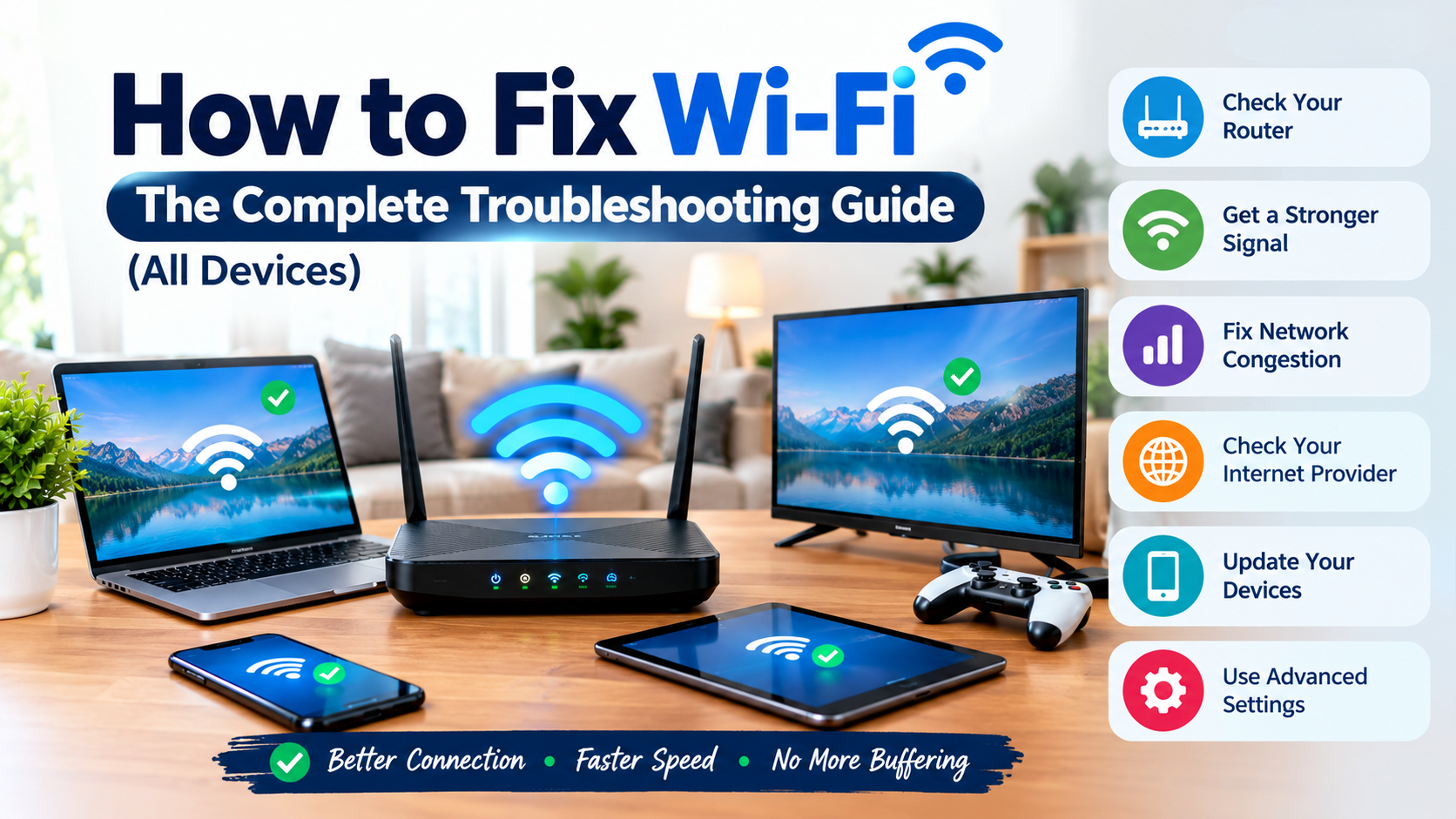

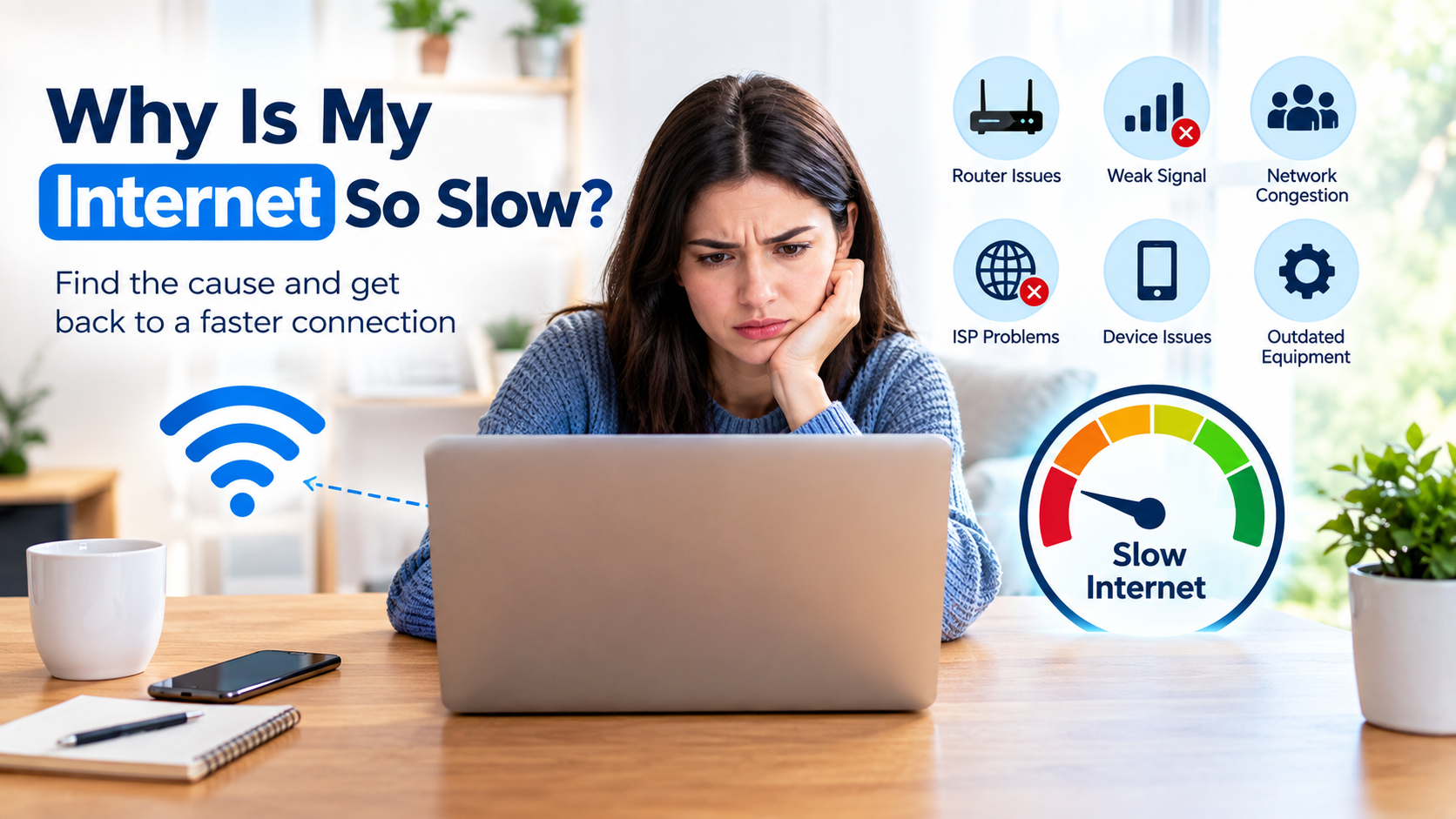
A slow internet connection rarely has one single cause. It can come from your router, your provider, the specific device you’re using, or even the exact website you’re trying to load. This guide walks through every common reason your internet feels slow, why it can happen suddenly, why your phone or wired connection might behave differently than your Wi-Fi, and the practical steps that actually fix it.
Rather than guessing at one fix and hoping it works, you’ll be able to narrow down exactly where the slowdown is coming from and solve it directly.
The Short Answer
In most cases, a slow internet connection comes from one of five places: your router’s signal and settings, too many devices competing for bandwidth, interference or distance affecting Wi-Fi specifically, a problem on your provider’s network, or an issue with the specific device or website you’re using. Testing a wired connection directly into your router is the fastest way to tell whether the problem is your internet plan or your home network.
Table of Contents
Why Is the Internet So Slow? The Main Causes
1. Router Signal and Placement
Wi-Fi is a radio signal, and radio signals weaken with distance and physical obstacles. Walls, floors, metal appliances, and even large mirrors absorb or reflect the signal before it reaches your device, which lowers both speed and reliability the farther you are from the router.
2. Network Congestion
Every device sharing your connection — laptops, phones, smart TVs, doorbell cameras, gaming consoles — draws from the same pool of bandwidth. The more devices actively streaming, downloading, or backing up data at once, the less capacity is left for anything else.
3. Outdated Equipment
Older routers and modems weren’t built for today’s number of connected devices or data-heavy activities like 4K streaming and large downloads. If your equipment hasn’t been replaced in several years, it may simply be under-powered for current household demand.
4. Interference
Household electronics like microwaves, cordless phones, and baby monitors can disrupt Wi-Fi signals, particularly on the 2.4GHz band. In apartments or dense neighborhoods, overlapping signals from nearby networks add to the problem.
5. Provider-Side Congestion or Faults
Sometimes the bottleneck isn’t in your home at all. Local network congestion during peak evening hours, maintenance work, or infrastructure limitations on your provider’s end can all produce the same symptoms as a weak home network.
6. Background Activity
Automatic software updates, cloud photo backups, and streaming devices left running in another room quietly consume bandwidth without you noticing, making everything else feel slower.
Why Is My Wi-Fi So Slow All of a Sudden?
A sudden change is usually more specific than a connection that’s always been mediocre. Common triggers include:
- A new device joined the network and is using a large share of bandwidth.
- A firmware update silently changed router settings.
- Your household’s usage pattern changed — more people working or streaming from home at once.
- A physical change at home, like new furniture or a renovation, now blocks the signal path.
- The router hasn’t been restarted in weeks or months and needs to clear its memory.
- An unauthorized device is connected to an insecure network.
A router restart, followed by a direct wired speed test, is usually the fastest way to identify which of these is responsible.
Why Is My Ethernet Slower Than Wi-Fi?
This feels backwards, since a wired connection should almost always outperform wireless, but it does happen. The most common causes are:
- Outdated cable category. A Cat5 cable caps out at a fraction of the speed of Cat5e or Cat6. Confirm the label printed on the cable itself.
- Port speed mismatch. Some routers and older laptops have Fast Ethernet ports limited to 100 Mbps, while their Wi-Fi hardware supports far higher speeds.
- Duplex mismatch. Your device and router negotiate a “duplex” setting automatically. When this negotiation fails, the connection can be forced into a slower, one-direction-at-a-time mode.
- Damaged or overly long cables. Bent, crushed, or excessively long cables cause signal loss and force a slower connection speed.
- Outdated network drivers. On computers, an outdated or corrupted network adapter driver can silently cap performance.
Quick fix: check your device’s network adapter settings (on Windows: Settings > Network & Internet > Ethernet > Hardware Properties) to confirm the reported link speed, and try a different, known-good cable before assuming the problem is your internet plan.
Why Is My Internet So Slow on My Phone?
Mobile devices have their own set of slowdown causes separate from your home network:
- Weak Wi-Fi signal reaching that specific spot in the house, especially in bedrooms or upper floors farther from the router.
- Background app refresh and updates running silently and consuming data.
- Too many browser tabs or apps open at once, especially on older phones with limited memory.
- Switching between Wi-Fi and mobile data unexpectedly, particularly in areas with a weak signal on both.
- Outdated operating system or app versions, which can affect how efficiently your phone handles network requests.
- A full storage drive, which can slow down almost everything on a phone, including how quickly it processes web pages.
Why Is My Phone So Slow on the Internet? Troubleshooting Steps
- Turn Wi-Fi off and on again to force the phone to reconnect and re-negotiate signal strength.
- Forget the network and reconnect, entering the password fresh, since saved network profiles occasionally develop connection issues over time.
- Check for a low-data or low-power mode that may be quietly throttling background network activity.
- Close unused apps and browser tabs to free up memory and processing power.
- Move closer to the router to rule out a weak signal at your current location.
- Restart the phone, which clears temporary memory issues that build up over time.
- Check for app or system updates, since outdated software can affect network performance.
Can a Website Make Your Wi-Fi Slow?
A specific website won’t slow down your Wi-Fi network itself, since your router doesn’t “know” what website you’re visiting; it just moves data. However, a website absolutely can make your experience feel slower in several ways:
- Heavy pages with large images, video, or ad scripts take longer to load and use more bandwidth than a simple text page.
- Poorly optimized or bloated websites can take several seconds to fully load even on a fast connection.
- Too many browser tabs open at once, each quietly refreshing content in the background, competes for the same bandwidth.
- Malicious or compromised sites can run scripts that consume device resources, which feels like a slow connection even though your network is fine.
- DNS lookup delays — the step where your device translates a website name into a server address — can add noticeable delay on some networks, independent of your actual connection speed.
If one specific site consistently loads slowly while everything else is fast, the issue is most likely with that website or its server, not your home Wi-Fi.
How Can I Get a Stronger Wi-Fi Signal?
- Move the router to a central, elevated, open location — away from cabinets, thick walls, and large appliances.
- Switch Wi-Fi channels. On the 2.4GHz band, channels 1, 6, and 11 don’t overlap with each other, which reduces interference in crowded areas.
- Use the 5GHz or 6GHz band for nearby devices that need speed, and reserve 2.4GHz for devices farther from the router that need range.
- Update your router’s firmware to fix bugs and improve stability.
- Reduce the number of physical obstacles between the router and the rooms you use most.
- Restart your router on a regular schedule to clear memory buildup.
- Secure your network with a strong password and up-to-date encryption, so outside devices aren’t quietly using your bandwidth. Official guidance on securing a home Wi-Fi network covers encryption types and password practices in detail.
How to Enhance Signal Strength of Wi-Fi: Advanced Options
If the basic steps above aren’t enough, particularly in larger homes, these options offer a more permanent fix:
- Mesh Wi-Fi systems place multiple connected units around the home, creating consistent coverage rather than relying on a single broadcast point. This generally performs more evenly than a single extender.
- Wi-Fi extenders or repeaters rebroadcast an existing signal into a specific dead zone. They work well for small gaps but add some latency and rarely match the original signal’s full speed.
- High-gain or external antennas, on routers that support them, focus the signal more strongly toward the areas where you need it most.
- Powerline adapters send a network signal through your home’s electrical wiring, bypassing Wi-Fi obstacles entirely, which can help in homes with thick walls or multiple floors.
- Upgrading to a Wi-Fi 6 or 6E router improves both speed and how efficiently the router handles many connected devices at once.
Comparing Your Options
| Solution | Cost | Best For | Difficulty |
|---|---|---|---|
| Reposition router | Free | Most coverage gaps | Easy |
| Change Wi-Fi channel | Free | Crowded buildings | Easy |
| Restart schedule | Free | General slowdowns | Easy |
| Wi-Fi extender | Low cost | Small dead zones | Easy–Moderate |
| Mesh Wi-Fi system | Moderate–High | Large or multi-floor homes | Moderate |
| New router (Wi-Fi 6/6E) | Moderate–High | Many connected devices | Moderate |
| Powerline adapter | Moderate | Homes with thick walls | Moderate |
How Much Speed Does Your Household Actually Need?
Before assuming your plan itself is the problem, it’s worth checking whether your subscribed speed matches your household’s actual usage. A useful household broadband speed guide breaks down recommended minimum speeds based on the number of people and devices active at the same time, which helps you tell whether the real issue is your Wi-Fi setup or simply an underpowered plan.
Common Mistakes to Avoid
- Assuming a faster plan will fix a coverage problem rather than a bandwidth problem.
- Leaving a router on default settings and an unchanged default password.
- Placing an extender too far from the main router, weakening the signal it’s meant to extend.
- Forgetting to check for firmware or app updates.
- Testing speed only over Wi-Fi and never confirming with a wired connection.
- Ignoring an unusually high number of connected devices on the network.
When to Contact a Professional or Your Provider
- A wired speed test, plugged directly into the router, is consistently below what you’re paying for.
- The slowdown persists across multiple router locations, settings changes, and a hardware upgrade.
- Unfamiliar devices appear connected to your network.
- Outages or slowdowns happen at the same time each day, suggesting a local infrastructure issue rather than a home network problem.
For broader steps on keeping your whole home network protected from unauthorized use, which can also affect performance, general home network security guidance outlines practical measures like disabling remote management and monitoring for unrecognized devices.
Frequently Asked Questions
Why is my internet slow even though I pay for a fast plan? A fast plan sets the maximum possible speed, but Wi-Fi coverage, interference, outdated equipment, or too many connected devices can all prevent you from actually reaching that speed.
Why is my internet so slow at night specifically? Evening slowdowns usually point to network congestion, either from more people in your own household being active online or from your provider’s local network being busiest during peak hours.
Why is my Wi-Fi fine on one device but slow on another? Older devices often have slower Wi-Fi hardware, and their position in the house relative to the router can also differ. A phone farther from the router will generally see a weaker signal than a laptop sitting next to it.
Can a virus make my internet slow? Yes. Malware running in the background can consume bandwidth and processing power, making your connection feel slow even when your network itself is working normally.
Does closing browser tabs actually improve speed? It can help, especially on phones or older computers, since each open tab may continue loading content or refreshing data in the background.
Why is my ethernet connection slower than my Wi-Fi? This usually points to an outdated cable, a port limited to lower speeds, a duplex mismatch, or an outdated network driver rather than an actual internet plan issue.
Should I connect gaming devices to Wi-Fi or ethernet? Ethernet is generally more stable for gaming, since it avoids wireless interference and signal fluctuations that can cause lag spikes, even if the top speed looks similar on paper.
Why does my internet slow down when more people use it? Bandwidth is shared. When multiple devices stream, download, or video call at the same time, each one gets a smaller share of the total available connection.
Is it my router or my provider’s fault? A wired speed test directly into the router is the clearest way to tell. If wired speed matches your plan, the issue is your Wi-Fi setup. If it’s slow even wired, the issue is more likely your provider or equipment.
How often should I restart my router? Restarting monthly, or setting an automatic overnight restart with a smart plug, helps clear memory buildup and prevents many gradual slowdowns.
Does the type of website I visit affect my overall internet speed? No, your network speed itself stays the same regardless of the website. However, heavy, poorly optimized, or ad-heavy pages can make loading feel slower even on a fast connection.
What’s the fastest way to boost Wi-Fi signal without buying new equipment? Repositioning the router to a central, elevated, open spot and switching to a less crowded Wi-Fi channel are both free changes that often produce a noticeable improvement.
Conclusion
A slow internet connection almost always traces back to one of a few places: your router’s signal and placement, too many devices sharing bandwidth, interference, a specific device’s settings, or something happening on your provider’s network. Start by testing a wired connection to separate a Wi-Fi problem from a plan problem, then work through the free fixes — repositioning your router, changing channels, and restarting your equipment — before considering a mesh system or a router upgrade.
Once you know where the slowdown is actually coming from, fixing it is usually quick. Work through the steps in this guide in order, and you should end up with a faster, steadier connection across every device in your home.