

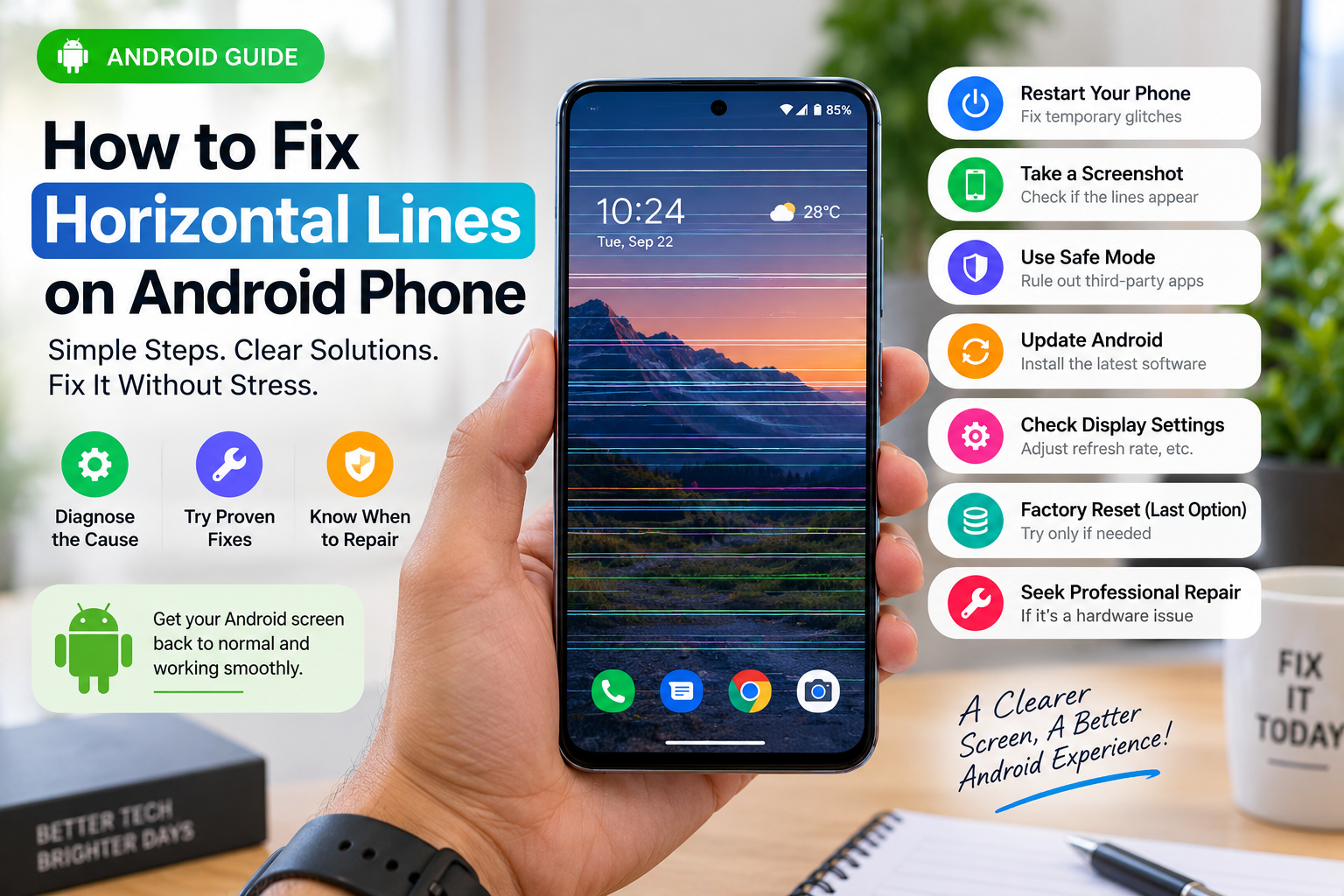
If you are trying to figure out how to fix horizontal lines on an Android phone, start with one simple test before resetting anything: take a screenshot and view that screenshot on another device.
If the horizontal lines also appear in the screenshot when you open it on another phone, tablet, or computer, the problem may involve software, an app, or graphics rendering. If the screenshot looks completely normal while the lines remain visible on your phone’s physical screen, the display panel, connector, or other screen hardware becomes more likely.
That distinction matters because a factory reset cannot repair physically damaged display hardware.
Horizontal lines may appear as green, pink, white, black, grey, or flickering bands. They can cover the entire display or appear only in one area. Some are temporary software glitches. Others indicate a damaged screen.
The safest approach is to diagnose the cause first and then apply the appropriate fix.
Table of Contents
First, Find Out Whether the Problem Is Software or Hardware
Think about what happened immediately before the lines appeared.
Did you:
- Drop the phone?
- Sit on it or place pressure on it?
- Expose it to water?
- Install an Android update?
- Install a new app?
- Notice the phone becoming unusually hot?
- Replace the screen recently?
The timing can provide an important clue.
Use these observations before attempting major fixes:
| What happens | What it may indicate |
|---|---|
| Lines appear in a screenshot viewed on another device | Possible software, app, or graphics-rendering problem |
| Screenshot is clean but the phone still shows lines | Physical display hardware becomes more likely |
| Lines appear during the manufacturer’s boot logo | Hardware becomes more likely |
| Lines appear only inside one app | An app-specific issue is possible |
| Lines disappear in Safe Mode | A downloaded app may be involved |
| Lines appeared immediately after a drop | Physical display damage becomes more likely |
| Lines worsen when the phone gets hot | Heat or hardware instability may be involved |
Do not assume every coloured line automatically means the screen must be replaced.
1. Restart Your Android Phone
Begin with the simplest fix.
Restarting reloads Android and clears temporary processes that may interfere with how the screen is displayed.
Use your phone’s normal restart option. The exact button combination varies among Samsung, Google Pixel, Xiaomi, OnePlus, Motorola, Oppo, Vivo and other Android manufacturers.
After restarting, check the screen before opening several applications.
If the horizontal lines disappear completely and do not return, the problem may have been a temporary software or display-rendering glitch.
If they remain, continue troubleshooting.
2. Look for the Lines During Startup
Restart the phone again, but this time watch the display from the moment it switches on.
Pay close attention to the manufacturer’s logo.
If the horizontal lines are already visible during the boot screen, before your normal applications and home screen appear, a third-party application becomes a less likely explanation.
Persistent lines during startup can indicate that further software troubleshooting may not solve the problem.
If the screen looks normal while starting and the lines appear only after Android loads, continue with the software-related checks.
3. Perform the Screenshot Test
This is one of the most useful diagnostic steps.
Take a screenshot while the horizontal lines are visible.
Send that screenshot to another:
- Smartphone
- Tablet
- Laptop
- Desktop computer
Then open the screenshot on that second device.
If the lines appear in the screenshot
The issue may originate before the image reaches the physical display.
Possible areas to investigate include:
- A specific application
- Android software
- Graphics rendering
- Display-related software settings
- A recent system update
Continue with Safe Mode, app troubleshooting and software updates.
If the screenshot looks normal
If the screenshot looks completely normal on another device but horizontal lines remain visible on your Android phone, the physical display system becomes more suspicious.
Possible causes include:
- Damaged OLED or LCD panel
- Damaged display connector
- Flex-cable problems
- Impact damage
- Pressure damage
- Internal display-component failure
At this point, repeatedly resetting Android may accomplish very little.
4. Allow an Overheating Phone to Cool Down
If your Android phone feels unusually hot, stop demanding activities temporarily.
These might include:
- Gaming
- Video recording
- GPS navigation
- Fast charging
- Long video calls
- Running multiple demanding apps
Remove the case if it appears to be trapping heat and leave the phone in a cool, ventilated area.
Do not place a hot smartphone inside a refrigerator or freezer, and do not place ice directly against it.
Once the phone returns to a normal temperature, restart it and check whether the horizontal lines remain.
If the lines repeatedly appear or become worse whenever the phone heats up, make a note of that behaviour. It may help a technician diagnose the fault.
5. Start the Android Phone in Safe Mode
Safe Mode can help determine whether a downloaded application is contributing to the problem.
When Android runs in Safe Mode, most downloaded third-party applications are prevented from running normally.
The exact method varies depending on the phone manufacturer and Android version, so use the Safe Mode instructions for your specific model.
Once Safe Mode is active, use the phone for several minutes.
If the horizontal lines disappear, investigate applications that were installed or updated shortly before the problem began.
Pay particular attention to:
- Screen filters
- Launchers
- Display customisation apps
- Screen recorders
- Overlay tools
- Gaming utilities
- Performance-management applications
Remove suspicious apps one at a time and restart normally.
If the lines remain even in Safe Mode, continue with the next diagnostic step.
6. Update Android and Your Apps
If there is no obvious physical damage and the problem appears software-related, check for an available Android system update.
Open your phone’s system-update section and install legitimate updates supplied by your device manufacturer.
You should also update your applications through the official app store.
Software updates can correct bugs and compatibility problems that may affect how applications or graphics are displayed.
Back up important information before installing a major operating-system update.
7. Check Whether the Lines Appear in Only One App
Open several different areas of your Android phone:
- Settings
- Home screen
- Gallery
- Camera
- Browser
- Video applications
If horizontal lines appear only inside one application while everything else looks normal, investigate the app before assuming the physical display is damaged.
Try:
- Closing the app completely.
- Restarting the phone.
- Updating the app.
- Clearing its cache where appropriate.
- Reinstalling it after confirming important app data is backed up.
If what looks like horizontal lines occurs only during online video and is accompanied by buffering, pixelation, freezing or reduced image quality, the issue may be related to your connection rather than the screen itself.
In that situation, follow our guide to fixing Wi-Fi problems before considering screen repair.
8. Change the Display Refresh Rate Temporarily
Some Android smartphones allow users to select different display refresh rates, such as 60 Hz, 90 Hz or 120 Hz.
If your phone provides this setting, temporarily select the standard refresh-rate option.
It may appear somewhere similar to:
Settings → Display → Refresh Rate
The exact menu varies between Android manufacturers.
Changing the refresh rate should primarily be treated as a diagnostic step rather than a guaranteed repair.
If changing the refresh rate noticeably changes the behaviour of the horizontal lines, record what happened. That information may help technical support or a repair technician.
9. Back Up Important Data
If the horizontal lines are spreading, becoming more frequent, or appearing alongside touch-screen problems, back up important information while you can still use the display.
Consider backing up:
- Photos
- Videos
- Contacts
- Documents
- Messages
- Authentication information
- Important application data
- Account recovery information
A worsening display fault may eventually make the phone difficult or impossible to operate.
Backing up early is safer than waiting until the screen becomes unusable.
10. Use a Factory Reset Only as a Final Software Test
Do not jump directly to a factory reset.
A factory reset removes your accounts, applications, settings and locally stored personal information.
Consider it only when:
- There is no obvious physical damage.
- The screenshot test suggests software involvement.
- The problem appeared around a software change.
- Safe Mode did not solve the issue.
- Other software troubleshooting failed.
- Your important data has been backed up.
After resetting the phone, test the display before reinstalling every application.
If the horizontal lines remain on a freshly reset device, hardware becomes more likely.
Do Not Press, Bend or Hit the Screen
Some online tutorials suggest pressing hard around the horizontal line, twisting the phone, squeezing the display or repeatedly tapping specific areas.
Avoid these methods.
Pressure can potentially worsen damage to the:
- Display panel
- Glass
- Internal connectors
- Phone frame
- Battery
A line temporarily disappearing when the phone is squeezed does not mean the underlying fault has been safely repaired.
Modern smartphones can also contain tightly packed lithium-ion batteries. The U.S. Consumer Product Safety Commission advises consumers to handle mobile-device lithium-ion batteries carefully because they are sensitive to physical stress. You can read the CPSC guidance on mobile-device battery safety.
If physical pressure appears to affect the line, professional inspection is safer than repeatedly squeezing the phone.
What If the Phone Was Dropped but the Glass Is Not Cracked?
An intact front glass does not guarantee that the display components underneath it are undamaged.
A strong impact can potentially affect:
- OLED or LCD layers
- Display connectors
- Flex cables
- Internal circuitry
- The phone’s frame
If the horizontal line appeared immediately after a drop and remains visible during startup, software troubleshooting becomes less likely to fix the problem.
A professional hardware inspection may be the more practical next step.
What If Horizontal Lines Appeared After an Android Update?
Do not automatically assume that an Android update physically damaged the display.
Instead, look at the evidence.
Start by:
- Restarting the phone.
- Performing the screenshot test.
- Checking the boot screen.
- Testing Safe Mode.
- Checking for another system update.
If the lines are captured in screenshots and appeared after a software update, investigating software makes sense.
If screenshots look normal while the line also appears during the boot logo, hardware should still be considered.
An update happening around the same time as a display problem does not automatically prove that the update caused it.
Can Slow Internet Cause Horizontal Lines?
A slow internet connection normally does not create a permanent electronic line across an OLED or LCD display.
However, connection problems can make streaming video:
- Freeze
- Pixelate
- Become blocky
- Drop in quality
- Show temporary visual artifacts
Some users may interpret these effects as screen lines.
Open an offline photo or the Android Settings screen.
If the horizontal line remains there, your internet connection is unlikely to be the cause.
If the problem occurs only during online streaming and you also experience buffering or slow loading, see our guide explaining why your internet is slow and how to troubleshoot it before assuming your screen is damaged.
When a Swollen Battery Makes This More Than a Screen Problem
Horizontal lines alone do not automatically indicate a dangerous battery.
However, treat the situation differently if you also notice:
- The screen lifting away from the phone
- Battery swelling
- Severe unexplained heat
- Smoke
- A burning or unusual smell
- A distorted phone body
- Significant physical damage
Do not press a lifted display back into place.
Do not puncture or bend the device.
Do not continue charging a phone that appears dangerously damaged or swollen.
The U.S. Environmental Protection Agency explains that a swollen lithium-ion battery indicates battery damage and may present a fire hazard. Its official lithium-ion battery safety guidance recommends contacting the manufacturer, retailer, or an appropriate waste-management authority for guidance when a battery has swollen.
The EPA also advises that lithium-ion batteries and devices containing them should not simply be placed in household rubbish or ordinary recycling bins.
If your display is being pushed outward by a swollen battery, the battery problem takes priority over diagnosing the horizontal lines.
Can Horizontal Lines Be Fixed Without Replacing the Screen?
Sometimes.
If software is responsible, possible solutions include:
- Restarting the phone
- Removing a problematic application
- Installing updates
- Adjusting an affected display setting
- Performing a factory reset as a final software test
Hardware damage is different.
Software cannot physically repair a damaged OLED or LCD panel.
If the screenshot is clean, the line appears during startup, and the device recently suffered a drop or significant pressure, professional inspection becomes the more appropriate next step.
Does a Factory Reset Fix Horizontal Lines?
It can, but only when software is causing the problem.
A factory reset can remove:
- Problematic applications
- User configuration problems
- Certain software conflicts
- Some corrupted settings
It cannot physically repair:
- A damaged OLED panel
- A damaged LCD panel
- Broken display circuitry
- Torn flex cables
- Loose hardware connections
- Impact damage
This is why a screenshot test should happen before a factory reset.
Why Does My Android Phone Have Green or Pink Lines?
The colour of a line does not reliably tell you exactly which component has failed.
Horizontal or vertical lines may appear:
- Green
- Pink
- Purple
- White
- Grey
- Black
Instead of diagnosing the phone from colour alone, ask:
- Is the line visible in screenshots?
- Is it visible during startup?
- Did the phone suffer physical damage?
- Does Safe Mode affect it?
- Is it visible in every application?
- Does temperature affect it?
These observations provide more useful diagnostic information than colour alone.
When Should You Take the Phone for Professional Repair?
Professional diagnosis is sensible when:
- The lines appeared after a drop.
- The phone has physical damage.
- Lines appear during the boot screen.
- Screenshots look normal on another device.
- The display repeatedly flickers.
- Part of the touchscreen stops responding.
- Black areas begin spreading across the display.
- More coloured lines continue appearing.
- The screen is separating from the frame.
- The battery appears swollen.
- Software troubleshooting has clearly failed.
Do not continue resetting or reinstalling apps when the evidence consistently points toward hardware damage.
Should You Repair the Screen or Replace the Phone?
Get a diagnosis and repair estimate before deciding.
For a relatively recent or expensive Android smartphone, replacing the screen may make financial sense.
For an older phone, compare:
Cost of repair + expected remaining useful life
with:
Cost of replacing the device
Also check whether the manufacturer provides:
- Standard warranty coverage
- Extended warranty
- Accidental-damage coverage
- Device-protection plans
- Model-specific service programmes
Coverage varies by manufacturer, country, purchase date, device model and type of damage.
Quick Diagnosis: What Should You Do Next?
Use this simple decision path.
Horizontal lines appear → Take a screenshot.
If the lines appear in the screenshot, investigate:
Apps → Safe Mode → Android updates → software settings → factory reset as a last option.
If the screenshot is clean, restart the phone and watch the startup screen.
If the lines appear during startup, physical hardware becomes more likely.
If the phone was recently:
Dropped → Bent → Exposed to liquid → Crushed → Put under significant pressure
consider professional inspection.
If the display is lifting and the phone appears swollen or dangerously hot, stop treating it as a normal screen problem and follow appropriate battery-safety guidance.
Frequently Asked Questions
Why did horizontal lines suddenly appear on my Android phone?
Possible causes include temporary software problems, app-related rendering issues, overheating, display-panel damage, connection problems, or physical impact. The screenshot and startup-screen tests can help distinguish between software and hardware.
Can restarting an Android phone remove horizontal lines?
Yes, when the problem is caused by a temporary software or rendering glitch. Persistent lines that remain during startup need further investigation.
Can a screen protector cause horizontal lines?
A normal screen protector generally does not create electronic horizontal lines inside the display. However, damaged protectors, moisture, reflections or unusual visual patterns may sometimes create effects that resemble display faults.
Can an app fix green or horizontal lines?
An app cannot physically repair a damaged OLED or LCD screen. Software can help only when the underlying problem is actually software-related.
Should I factory-reset my Android phone before replacing the screen?
Not immediately. Restart the phone, perform the screenshot test, inspect the boot screen, try Safe Mode, update Android, and back up important data first. If the evidence strongly indicates hardware damage, a factory reset may not be useful.
Final Takeaway
The most useful part of learning how to fix horizontal lines on an Android phone is identifying whether the fault exists in software or in the physical display.
Start with a restart.
Then perform the screenshot test.
Watch the display during startup.
Try Safe Mode if software still appears possible.
Back up important information before attempting anything destructive.
If screenshots look normal while the line remains visible on the physical display—particularly after a drop—stop endlessly changing Android settings and consider professional inspection.
If the screen is lifting, the battery appears swollen, or the phone becomes dangerously hot, treat the situation as a battery-safety concern rather than an ordinary screen glitch.
Diagnose first. Reset later. Repair when the evidence points to hardware


