

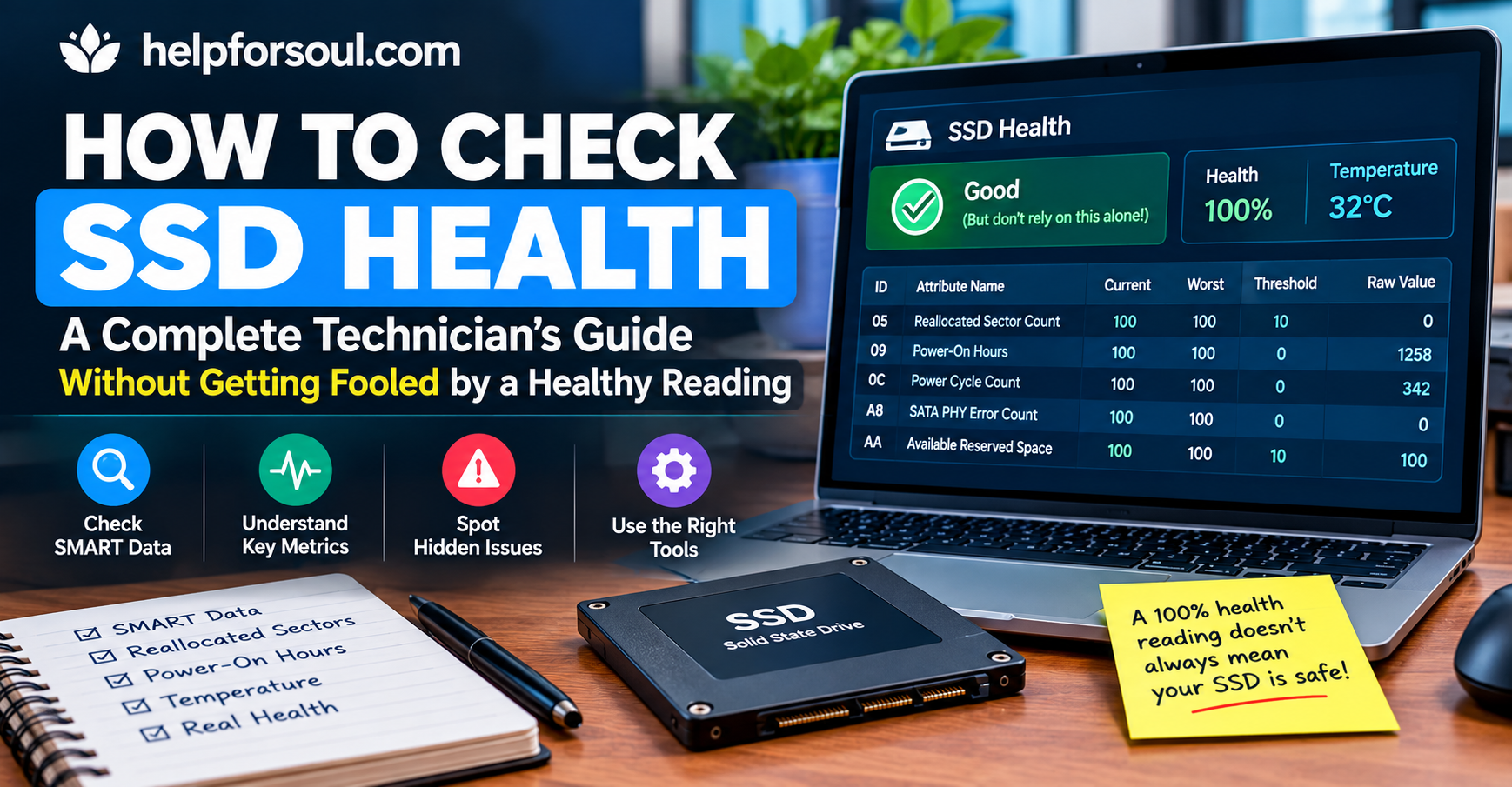
I’ve pulled SMART logs off failing drives for eleven years on a repair bench, and one pattern still catches people off guard: a drive can report 91 percent life remaining the same week its controller quits, while another sits at 40 percent and keeps running for two more years without a complaint. If you’re here because your machine feels slightly off and you want a straight answer instead of a number that might be lying to you, here’s how to actually check and what to do once you have the reading.
We’ll start with the two-minute built-in check, then get into what the numbers mean, where they can mislead you, and exactly what action to take at each stage.
Table of Contents
The Fastest Way to Check Your SSD’s Health Right Now
Run the quick check first. If it comes back clean and nothing below feels familiar, you can stop there.
On Windows 11 or 10
Open Settings → System → Storage → Advanced storage settings → Disks & volumes, click your drive, then Properties. NVMe drives with the right protocol support show a Drive health section with estimated remaining life and available spare capacity directly. If that section is missing, don’t take the absence as good news — Microsoft’s own health monitoring here doesn’t cover SATA SSDs, so a blank panel means “not reported,” not “fine.”
For a reading that works regardless of drive type, open PowerShell as Administrator and run:
Get-PhysicalDisk | Select FriendlyName, MediaType, HealthStatus, OperationalStatus, Size
This lists every physical disk with a plain Healthy/Warning/Unhealthy status (full command reference), and unlike the single “OK” that older tools return for every disk in the system it labels each one by name, so you actually know which drive is the problem if you have more than one installed. If an older guide tells you to run wmic disk drive get status, skip it. WMIC has been pulled from currently supported Windows 11 builds, so that command will either error out or simply stop being reliable depending on your update level.
On a Mac
Open Disk Utility (Applications → Utilities), select the drive in the sidebar, and check the S.M.A.R.T. Status field near the bottom of the info panel it reads Verified or a failure warning. Note that First Aid in the same app checks the file system for errors, which is a different thing entirely from SMART status; running First Aid does not tell you anything about the drive’s underlying wear or hardware condition.
What Does an SSD Health Percentage Actually Mean?
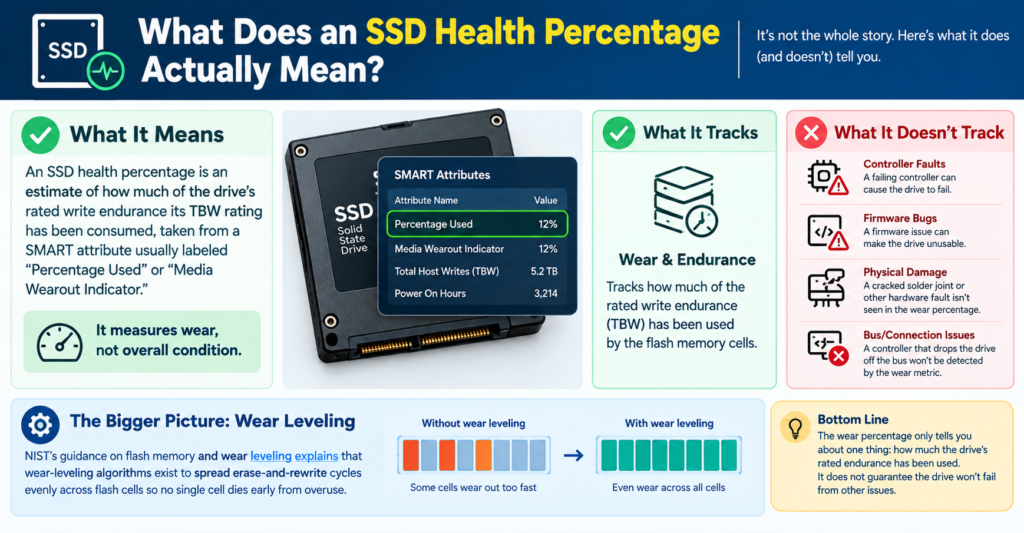
An SSD health percentage is an estimate of how much of the drive’s rated write endurance its Terabytes Written (TBW) rating has been consumed, taken from a SMART attribute usually labeled “Percentage Used” or “Media Wearout Indicator.” It measures wear, not overall condition. A drive can show 0 percent wear and still fail from an unrelated controller or firmware fault.
That distinction isn’t just a technicality. NIST’s guidance on flash memory and wear leveling explains that wear-leveling algorithms exist specifically to spread erase-and-rewrite cycles evenly across flash cells so no single cell dies early from overuse which is exactly what the wear percentage is tracking. What it is not tracking is a cracked solder joint, a firmware bug, or a controller that drops the drive off the bus entirely. I’ve seen both failure modes on the bench, and the wear percentage only ever warns you about one of them.
Reading the Full SMART Report
The one-line status is a start; a full SMART report tells you why. On Windows, CrystalDiskInfo (download only from the developer’s own site) reads every SMART attribute and boils it into a Good/Caution/Bad verdict. On Mac or Linux, install smartmontools (brew install smartmontools on Mac, or your distro’s package manager on Linux) and run sudo smartctl -a /dev/diskX (Mac) or the equivalent device path on Linux.
Here’s what to actually look at, in order of how much it should worry you:
| Attribute | What It Measures | Comfortable | Red Flag |
|---|---|---|---|
| Reallocated Sector Count / Uncorrectable Errors | Cells the drive has already had to work around or failed to read | 0 | Any nonzero value, or a rising trend |
| Percentage Used / Media Wearout | Write endurance consumed | Under 50% | Over 80%, or rising fast for the drive’s age |
| Available Spare (NVMe) | Backup cells left for wear leveling | Above 10% | Below the manufacturer’s threshold, often flagged automatically |
| Temperature | Sustained operating heat | Under 60°C | Regularly above 70°C under load |
| Power-On Hours | Total time in service | Context-dependent | Useful mainly to sanity-check the other numbers against drive age |
One habit worth building: check the same drive in two different tools before you act on a number. CrystalDiskInfo, a manufacturer’s own utility, and smartctl don’t always round or label the same raw attribute the same way, and I’ve seen a drive read “Caution” in one tool and “Good” in another because of how each one weighted a single borderline attribute. Cross-checking costs two extra minutes and prevents both false alarms and false comfort.
Why a “Healthy” Reading Can Still Be Wrong
The most common misconception I hear at intake is that a green status means the drive is safe until it isn’t full stop, no further thought needed. It’s a reasonable assumption and it’s wrong often enough to matter. Two things can be true at once: the wear-based percentage is accurate for what it measures, and the drive can still fail tomorrow for a reason that percentage was never built to catch.
Controller failure is the main blind spot. The NAND cells can be nowhere near their write limit while the small onboard chip that manages logical-to-physical address mapping simply stops responding correctly. When that happens, the drive can drop off the bus intermittently, throw read errors on data that was previously fine, or show up as “Healthy” one boot and unreadable the next — because the wear attribute genuinely hasn’t changed. This is also why Windows’ built-in health panel not covering SATA drives is worse than it sounds: it isn’t just missing data, it’s presenting an absence of data in a way that looks identical to “checked and fine.”
Warning Signs That Outrank Any Percentage
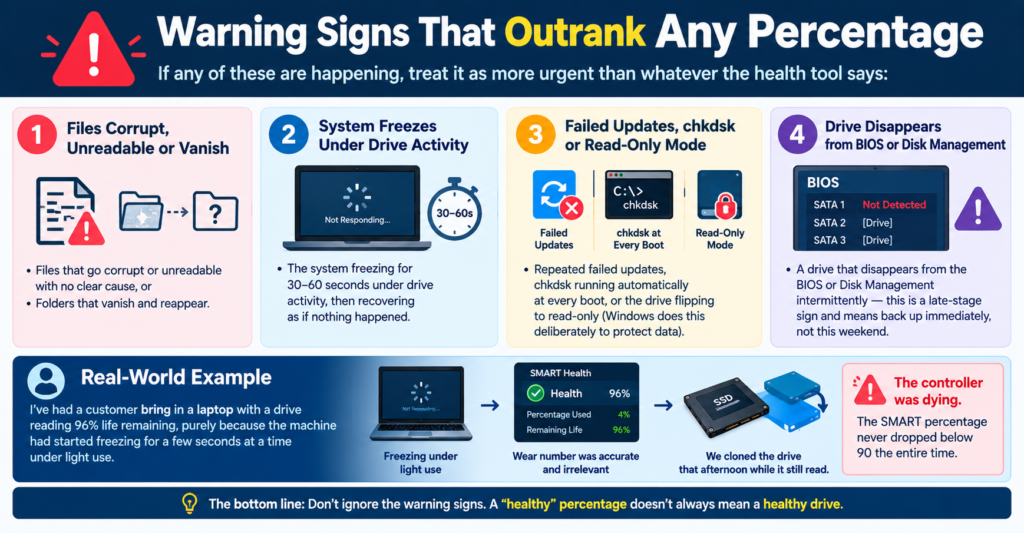
If any of these are happening, treat it as more urgent than whatever the health tool says:
- Files that go corrupt or unreadable with no clear cause, or folders that vanish and reappear
- The system freezing for 30–60 seconds under drive activity, then recovering as if nothing happened
- Repeated failed updates,
chkdskrunning automatically at every boot, or the drive flipping to read-only (Windows does this deliberately to protect data once it detects failing writes) - A drive that disappears from the BIOS or Disk Management intermittently — this is a late-stage sign and means back up immediately, not this weekend
I’ve had a customer bring in a laptop with a drive reading 96 percent life remaining, purely because the machine had started freezing for a few seconds at a time under light use. The wear number was accurate and irrelevant; the controller was dying. We cloned the drive that afternoon while it still read, and the SMART percentage never dropped below 90 the entire time.
What to Actually Do at Each Health Level
| Reading | What’s Likely Happening | Do Within 24 Hours | Do This Month |
|---|---|---|---|
| Healthy, 0 reallocated/uncorrectable errors | Normal wear, no active fault | Nothing urgent | Recheck monthly, keep backups current |
| Caution, or wear over 80% | Meaningful wear or early error signs | Back up everything you can’t lose | Plan a replacement on your schedule |
| Bad, errors present, or any warning-sign symptom above | Active or imminent failure | Back up immediately, stop heavy writes | Replace the drive; don’t wait for it to fully die |
| “Healthy” reading + warning-sign symptoms | Likely controller fault the wear number can’t see | Trust the symptoms, not the percentage — back up now | Get a second tool’s opinion or a professional read |
On the backup step specifically: CISA’s guidance for protecting business data three copies, on two different types of storage, with one kept offsite applies just as well to a personal drive you’re worried about. It’s not overkill for a single laptop; it’s the same math at a smaller scale.
Manufacturer Tools vs. Free Tools: Which to Trust
| Tool Type | Depth of Data | Best For | Watch Out For |
|---|---|---|---|
| Built-in OS check | Basic Healthy/Warning status | A fast first pass | Doesn’t cover all drive types (see above) |
| CrystalDiskInfo / smartmontools | Full SMART attribute breakdown | Understanding why, not just what | Only download from the official source — cloned lookalike sites exist |
| Manufacturer software (Samsung Magician, WD Dashboard, Seagate SeaTools) | Full SMART plus brand-specific tests and firmware updates | Confirming genuineness and running non-destructive self-tests | Samsung’s tool, for instance, can also flag counterfeit drives — a detail worth knowing if you bought a “deal” SSD from an unfamiliar seller |
Keeping an SSD Healthy Longer
- Leave roughly 10–20 percent of the drive free; the controller needs that headroom to manage wear leveling efficiently
- Keep sustained temperatures below 70°C a laptop run inside a closed bag under load is the single most common overheating scenario I see on intake
- Leave TRIM enabled (on by default in current Windows, macOS, and Linux) and don’t run manual defragmentation on an SSD it does nothing useful and adds unnecessary writes
- Install firmware updates from the manufacturer’s tool when available; they occasionally fix wear-reporting bugs, not just performance issues
Frequently Asked Questions
How often should I check my SSD’s health? Once a month is plenty for most people. If you’re already seeing odd behavior — freezes, corrupted files, failed updates — check immediately rather than waiting for the monthly habit.
Can a failing SSD be repaired? No. Unlike some hard drive issues, SSD wear and controller failure aren’t fixable. The move is cloning the data to a new drive while the old one still reads, which is far cheaper and more reliable than recovery after full failure.
Does 100 percent SSD health mean no problems? No it means low wear specifically. As covered above, controller faults and firmware issues can cause failure independent of the wear percentage, so pair the number with an eye on real-world symptoms.
Is CrystalDiskInfo safe to use? Yes, when downloaded from the developer’s own site. It only reads existing SMART data; it doesn’t write to the drive or run intrusive tests.
How long do SSDs actually last? Most quality drives outlast the computer around them — commonly five to ten years of typical use. Heat, near-full capacity, and heavy sustained writes shorten that; the health check above tells you where your specific drive sits instead of relying on an average.
Do I check SSD health differently on a Mac versus Windows? The tool changes but the concept doesn’t. Disk Utility’s S.M.A.R.T. Status field on Mac serves the same purpose as the Windows health panel — a quick pass/fail before you dig into a full SMART report with smartmontools.
What SSD health percentage should trigger a replacement? Treat 80 percent wear as the point to plan a replacement on your own schedule. But any reallocated/uncorrectable error count above zero, or any of the warning-sign symptoms above, should trigger the same urgency regardless of the percentage.
Can chkdsk fix a failing SSD? It can correct file-system errors, but it doesn’t repair the underlying hardware. If chkdsk runs repeatedly on its own at every boot, that’s a symptom of a hardware problem chkdsk can’t actually solve — back up and plan for replacement.
Do This Tonight
Pull the health report on every drive in the machine you’re using right now built-in check first, full SMART report if anything looks off. If any drive shows Caution, Bad, or a reallocated/uncorrectable count above zero, back it up before you close the lid, not tomorrow. Want the exact one-page reference we hand customers at the bench? Download the free SSD Health Checklist and keep it next to your monthly recheck.


